

In short
Most restrictions are temporary. Read the notice: if it shows an end time, switch off any tools and wait; if it asks you to verify your identity, do it with a government ID and your phone; if you think it's a mistake, appeal through the prompts. Don't open a new account in the meantime.
The three kinds of LinkedIn restriction
The screen you see tells you which one you have. A temporary restriction blocks the account until a time shown on the notice.
Read moreShow less
An identity restriction asks you to verify who you are before you can sign in again. A permanent restriction has no end date and follows serious or repeated violations, or a fake identity. Two other blocks are often confused with these but are not account restrictions: the weekly invitation limit, which only stops new connection requests for about a week, and the commercial use limit, which only caps people searches on free accounts.
- Temporary: blocked until the time on the notice
- Identity check: verify with a government ID to get back in
- Permanent: no end date, appeal only
- Not a restriction: the weekly invitation limit and the commercial use limit
Why LinkedIn restricts accounts
LinkedIn rarely names the exact trigger, but the causes fall into a few groups. The profile looks fake or misleading: a made-up name, a logo as the photo, or job history that doesn't add up.
Read moreShow less
The account looks hacked: sign-ins from new countries or devices. The activity looks unusual: many invitations sent fast, many of them ignored or answered with "I don't know this person", or hundreds of profile views in a short time. Or the account runs third-party software: LinkedIn's User Agreement bans bots, crawlers and browser extensions that scrape or automate activity on the site.
- Fake or misleading profile details
- Sign-ins that look like someone else took over the account
- Many invitations ignored or marked "I don't know this person"
- Software or extensions that scrape or automate LinkedIn
- Content that breaks the Professional Community Policies
How to get your account back, step by step
Start with the notice, because the fix depends on the type. For a temporary restriction, switch off every tool and browser extension that touches LinkedIn and wait until the time shown; LinkedIn's help pages say an account restricted for third-party software is re-enabled then.
Read moreShow less
For an identity check, follow the prompt: LinkedIn uses Persona, and you need your phone and a valid government ID, sometimes with a selfie, with the same name as your profile. If someone else got into the account, use LinkedIn's form for unauthorized account access. If you think the decision is wrong, appeal once, clearly and politely, through the prompts or LinkedIn Help.
- Read the notice: temporary, identity check or permanent
- Switch off every LinkedIn tool and extension
- Identity check: phone plus government ID, name must match the profile
- Hacked: use LinkedIn's unauthorized access form
- Mistake: one clear appeal through LinkedIn Help
How long a LinkedIn restriction lasts
A temporary restriction lasts until the time on the notice. Reports range from a few hours for a first, minor case to a couple of weeks for repeated ones.
Read moreShow less
An identity check usually clears within a few days of sending clean documents, though some people wait longer. The weekly invitation limit lifts by itself in about a week, and support won't lift it early. A permanent restriction doesn't end on its own; the only way back is an appeal LinkedIn accepts. Each new restriction tends to be longer than the last, so the first one is the time to change how the account is used.
- Temporary: until the time on the notice, hours to a couple of weeks
- Identity check: usually a few days after you submit
- Invitation limit: about a week, can't be lifted early
- Permanent: only an accepted appeal brings it back
What not to do while you're restricted
Don't open a new account to get around it. LinkedIn's User Agreement allows one account per person, it can connect a new account to the restricted one, and the new one is likely to be restricted too, which makes the appeal harder.
Read moreShow less
Don't sign in again and again from different devices, browsers or VPN locations, which looks like a takeover. Don't restart your tools the moment access comes back, and don't send a burst of invitations to catch up. Ease back in over a couple of weeks.
- No second account: one account per person
- No sign-ins from new devices or VPN locations
- No tools running until you're back and settled
- No catch-up burst of invitations
How to lower the risk if you do outreach
Be honest with yourself about the trade-off: LinkedIn's rules ban automation software, so any tool, Xreacher included, carries some risk, and no one can promise none.
Read moreShow less
What lowers it is behaving like a careful person. Send invitations people accept, from a precise search instead of a whole industry. Stay well under the weekly invitation limit, commonly reported at around 100. Start new accounts with a few requests a day and raise the pace slowly. Withdraw invitations nobody answered after a few weeks. Keep each account on one stable IP in its own country, and run one tool per account, not three at once.
- Target people likely to accept
- Stay well under about 100 invitations a week
- Start new accounts slowly
- Withdraw stale invitations
- One stable IP and one tool per account
How Xreacher paces LinkedIn accounts
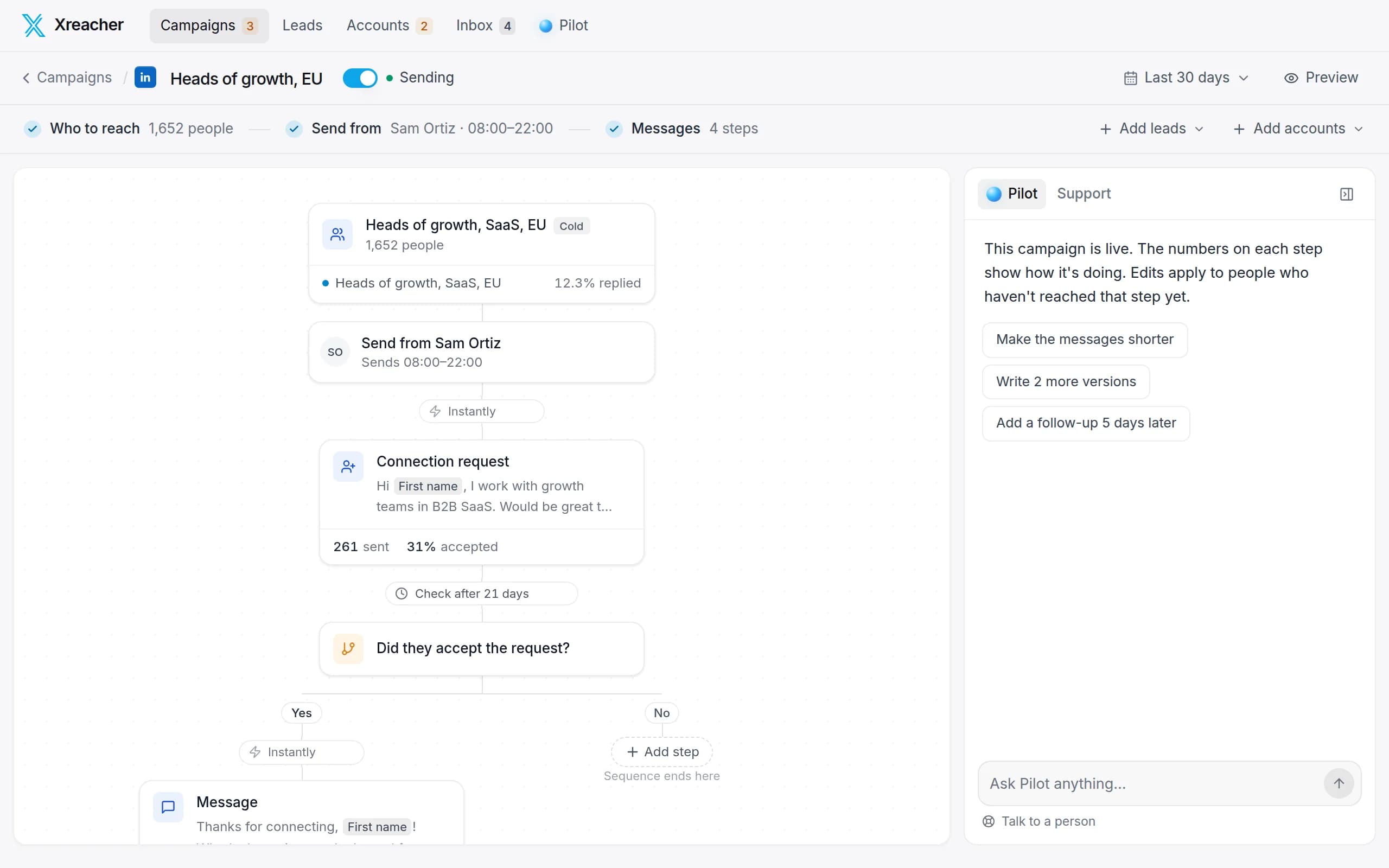
Xreacher gives you the controls above instead of promising a safe number. Each campaign has a weekly limit per account over a rolling 7 days (100 by default; set it lower for new accounts) and a daily pace: Auto starts at 3 requests a day and ramps to about 15 to 20, with 40 as the most.
Read moreShow less
A daily cap per account applies across all its campaigns, and invitations nobody accepted are withdrawn after 21 days by default. Pro includes a managed residential IP in your country for each LinkedIn account. If LinkedIn asks for a security check, an ID check or restricts an account, the Accounts page says so in plain words.
- Weekly limit per account, rolling 7 days, 100 by default
- Auto pace from 3 requests a day, 40 at most
- Daily cap per account across campaigns
- Auto-withdraw after 21 days by default
- Managed residential IP in your country on Pro